How AI Cat Stories Make $10K/Month & 1M Subs SUPER FAST! 🤑🚀
3.76k views1201 WordsCopy TextShare
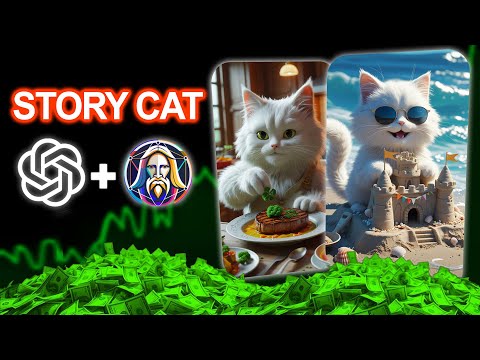
Learnoo Skills
How AI Cat Stories Make $10K/Month & 1M Subs SUPER FAST! 🤑🔥
In this video, I’m revealing all the ...
Video Transcript:
imagine a chef cat in the kitchen busy cooking and this video has gotten millions of views the Tik Tok Channel orange. cat 899 with this style of videos has 3.4 million subscribers and 40.6 million likes and all its videos have gone [Music] viral let's watch one of the videos together and see what the secret to getting so many views is [Music] so what makes this style of videos so popular and how can we also create such clips and get tons of views you're just for steps away from creating a viral video step one writing a
prompt with Chad GPT step two creating an image with Leonardo AI step three turning the image into a video with higho AI step four removing The Watermark and final editing with capcut before we start the tutorial if you haven't subscribed to the learn new skills Channel yet make sure to hit the Subscribe button and if you like the video don't forget to like it ready let's dive into the [Music] tutorial first go to the chat GPT website we plan to use this tool to generate suitable prompts for creating images for chat GPT to create the
prompts we need we first need to provide it with a specific text or scenario I have already prepared a PDF file containing five short and interesting stories these stories cover various themes such as a cat cooking a cat going grocery shopping a cat driving a cat visiting a coffee shop a cat going to the beach you can download this file from the telegram Channel pick one of the stories copy the text and paste it into chat section of chat GPT after entering the prompt in chat GPT click on the send button now that we have
the prompts it's time to turn them into images I personally use Leonardo AI but you can try any AI image generation tool you prefer search for Leonardo AI in your browser and enter the website click on get started first you need to sign up on the site you can use your Apple Google Microsoft account or email to register after signing up click on the image creation option to create an image with Leonardo AI follow these settings exactly as I do in the preset section click on the Phoenix 1.0 option in the style section select the
3D render option in the image Dimension section click on more and then choose the appropriate size for Tik Tok or YouTube shorts now go back to the chat GPT website copy the prompts in order and paste them into the prompt section in Leonardo AI after pasting The Prompt in Leonardo AI click on the generate button and wait a few moments for a highquality watermark free image to be created for you once the image is generated select one of the images and download it to download the image click on the download button below the image follow
these steps for the remaining images as well when all the images are ready it's time to turn them into a video for this I use the huo AI artificial intelligence type huo AI in your browser click on this site click on sign in and register on the site using your Google account after signing up to convert images into a video click on the create option and then select image to video click on the upload button and select one of the images you downloaded from Leonardo AI to upload it now go back to cat GPT and
type this text so that cat GPT can generate a specialized prompt for converting images to video for you type I want you to create an image to video prompt for each of the prompts then click click the send button you will see that chat GPT generates specific prompts that allow you to convert the images into a video with the best details copy The Prompt that matches the image you created and paste it into the prompt section in higho AI to start the video generation process click on this option wait a little while for your video
to be created repeat these steps to convert the rest of the images into videos as well you can convert up to three images into videos for free daily this is the result of converting images into a video using higho AI that you are now viewing to download the video Simply click on the download option step four removing watermarks and editing videos with capcut at this stage we'll edit the videos created with higho AI to achieve a professional and engaging output first import the videos you created with huo AI into cap cut and drag them into
the timeline since this video is intended for YouTube shorts or Tik Tok it's better for each clip to be between 3 to for seconds to create an appealing Rhythm to ensure your video displays correctly on YouTube and Tik Tok you need to adjust the aspect ratio to set the video's aspect ratio click on the ratio option and select 9916 to make it suitable for YouTube shorts and Tik Tok removing the watermark at the bottom of the video to remove the Watermark click on the crop option adjust the frame so that the water mark is removed
click on confirm for better display zoom in slightly on the video to fill the entire screen repeat this process for all videos adding transitions adding transitions makes the shift between Cliffs smoother and more deing to add a transition to the video go to the transitions tab select the black fade effect place it between the videos so they blend together seamlessly adding sound effects to the video adding sound effects to the video makes the viewing experience more engaging and impactful to download a sound effect search for pixabay in your browser click on the website and enter
the site in the search bar type the name of the sound effect related to to your video set the filter to sound effect select and download the desired sound effect to download the sound effect click on the download icon next to it drag the audio file into the time line and sync it with the video adding suitable music the right music gives the video a unique Vibe and keeps the audience more involved to download music search for relaxing instrumental music on the pixabay website set the filter to music select and download the desired track [Music]
add it to the timeline and adjust its volume after finishing the edits click on export to render the video choose a name for your video adjust the video quality and frame rate click on export to prepare the final output file Here's the final video ready with all the details and professional effects I hope you enjoy the result if this tutorial was helpful be sure to leave your thoughts in the comments and like the video also subscribe to the channel and turn on the notification Bell to never miss any new videos until the next video goodbye
[Music]
Related Videos

11:52
Earn $10,000/Month Creating AI Animated St...
Learnoo Skills
573 views

13:55
Create Stunning 3D Animation Videos Using ...
AI Playground
7,112 views

14:55
I Copied 2 VIRAL Channels That Make $100k/...
Money Degree
12,565 views
19:02
Cloning a $127K/Month Reddit Channel Using...
Cash-Coach
14,279 views
7:17
Raphael AI – FREE and UNLIMITED Image Gene...
CraftiumAI
6,934 views

16:50
14 things you MUST do after uploading a Yo...
Dan the creator
279,724 views

9:31
This AI Guitar Trend Gets Millions – So I ...
Saidox AI Flow
49,989 views

9:20
How to Make Viral Messi & Ronaldo AI Video...
Learnoo Skills
1,276 views
23:39
I CLONED a $30k Faceless Channel Using AI ...
Victor Catrina - YT Automation Expert
5,145 views

17:47
The ONLY 8 Faceless Niches That Will Make ...
InVideo For Content Creators
786,404 views

16:00
Make $500/Day in Under 20 Minutes Posting ...
Jay Brown
377,717 views

18:15
How I Created a $10,000/month Faceless You...
All About Money
974,431 views

10:01
How to Make AI POV Videos That Go Viral & ...
AI Playground
11,472 views

28:05
We CLONED a $307k/Month YouTube Channel Us...
Cash-Coach
318,017 views

16:40
How to Make an Animated Cartoon Video Usin...
Website Learners
1,841,731 views

15:02
30 Mins a Day—That’s All It Takes to Go Vi...
aiTrends
23,686 views

13:14
INSANE!!! Create a Talking AI Avatar with ...
Uc Gwen
18,304 views
11:55
From 0 to 1.5M Subs in 72 Videos – Copy Th...
ProvenTube
10,207 views

25:03
Earn US$10,000 Per Month - Create AI Anima...
Odetta Rockhead-Kerr
487,545 views

12:50
How I Create Tiny World Miniature Videos w...
AI Maskman
13,265 views