Yo yo yo, what up? What up? What up?
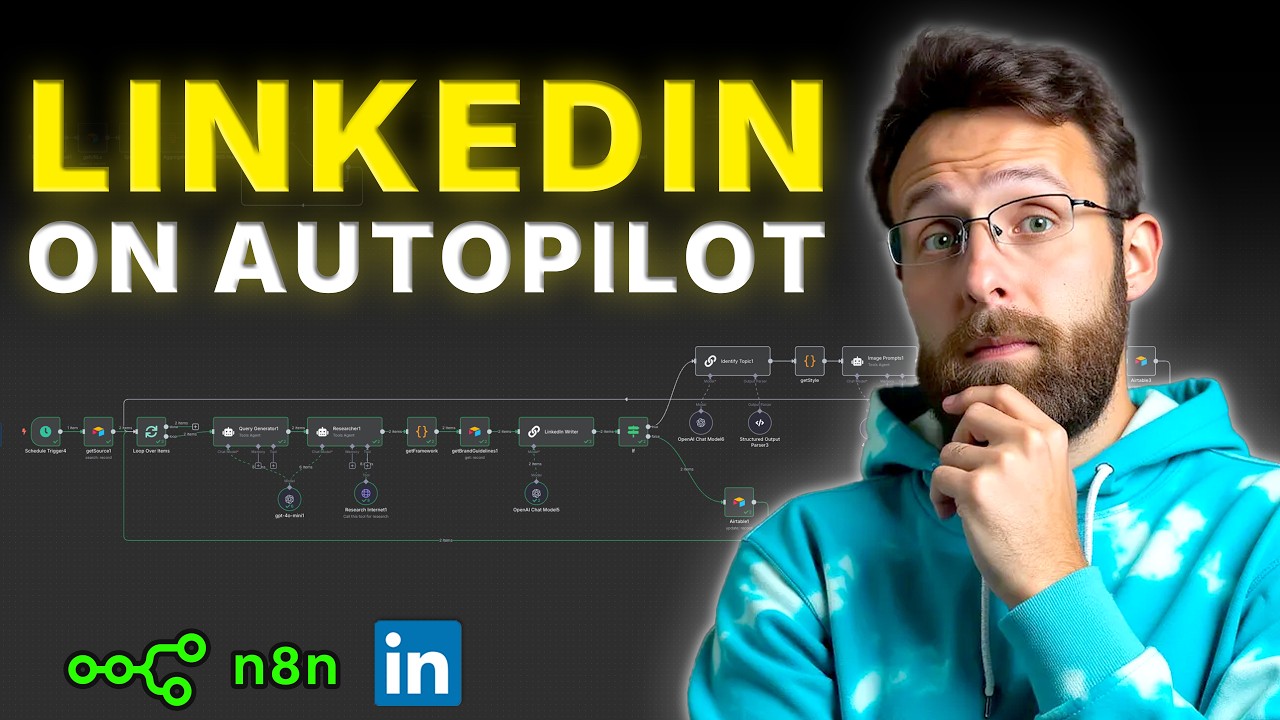
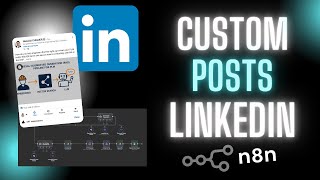
I've got the ultimate LinkedIn automation for you today. It's basically designed to take viral news stories, do additional research for you, and then write all of your LinkedIn post using your tone of voice and brand guidelines, and then publish everything to LinkedIn without you having to do anything. It'll even generate an AI image for you if you decide that's what you want.
This system gives you complete control over everything that goes out. And it's actually based off of a similar automation I built inside of make. com, which is one of my best performing YouTube videos and also one of my bestselling digital products.
And I think this system inside of naden is even better. So, let me show you how it works. If you want access to this workflow, I will leave all the resources for you, including all the AI prompts inside of my school community.
You'll just come down here. You go into this NAN LinkedIn writer. If you scroll all the way down to the bottom, you can just go ahead and you can download uh you know the NAD workflow as well as get access to the Air Table database.
If you come back into NAD, all you have to do is create a new workflow, come up to these dots, go to import from file, navigate to your file, go ahead and click open, and in just a couple seconds, this entire workflow will pop in for you to use. This community is growing every day. It's pretty active.
I'm releasing new content and new courses daily. And there's lots more fun stuff planned that I'm building for you. So, I'm just going to go ahead and I'm going to test this workflow just to show you how it works.
So, the first thing it's doing is it's getting all our viral news sources and then it's heading over here to do additional research for us. So, basically, we don't want to just take the news article as it exists. We want to search the internet to see if there's any more information that we can find to make our LinkedIn post like that much more compelling, that much more engaging.
And so, this is doing all the research for us uh on our behalf. And right now it's getting a a writing framework that I use to basically generate all types of LinkedIn posts. From there, we're pulling in our brand guidelines.
The LinkedIn writer is actually writing the post uh based off of a writing prompt that we can completely customize uh to the platform's best practices. And then basically here it's deciding if we want an image created or not. And since we did want an image created, it's basically just going ahead identifying the core topic uh of the article, generating an image for us, and then saving this back into our database.
And we're done. And so if we come over into Air Table here, this is the hub for the entire system. This gives you total control over everything that gets published.
Clients love a system like this. This is a system that I've sold to clients personally for thousands of dollars. It's extremely effective.
And you can see here that if we have a source headline like you can now use GPT40 to generate images and we have a little summary. If we come down here, we can see this LinkedIn post that our automation just wrote for us. And then if we come down here, this even actually generated an AI image for us.
And so if we're happy with this and we think this is good to go, we can just come down here and we can set this to approved. If we're not happy with it, we can go in here. We can make changes to the copy.
We can replace the image with an image of our own. It's really up to you how you want to customize the system. And now if we come back in here, you can see we have this really simple automation.
We can set this to run once a day, twice a day, however often that you want. We can just go ahead and we can go test workflow. You can see we're getting that article, generating image, and it's going over to LinkedIn, and it's going to create the post with our text and our image on our LinkedIn account.
So, if I just come in here and open up LinkedIn and I come over to my personal profile and I'll just scroll down here and go into show all posts. You can see now we have the entire post here. And if we scroll this down, we have all the text and the image associated with it.
I'm just going to delete this. I don't need it on my account right now. But that's essentially how the system works.
So, let me show you basically how I thought about the system and then I'm going to go through piece by piece and show you exactly how it's built. So, from a high level, this is how I think about the system. And I find this step is actually really helpful in your planning.
This allows you to kind of like troubleshoot before you actually get into building the system yourself. You can kind of see where there might be errors or where you might need some sort of like logic involved like if this happens then this other thing happens. And this really allows you to kind of like get ahead and just kind of like get your thoughts straight before you actually go into build mode.
So from a high level this is really basic. It's just getting a news article. It's doing additional research.
It's writing the article. It's creating the image and then it's posting it to LinkedIn. And then once that's done, it's just storing it back in the database for our reference.
Really straightforward flow here. I have a slightly more detailed version of it just to again like just get a little bit more granular to see what steps I might be missing. So basically, you know, we're going to run this on a schedule.
We want to make sure that we're able to get our posts like from an Air Table database. And I'm going to show you how to get viral news articles inside of your database so you can create your LinkedIn content. We're going to use AI to research this.
We're going to fetch the brand guidelines. This is a step that I that I left out here on the left. see like we can create our own brand guidelines and tone of voice that the system will pull in every single time it writes the post so your posts sound a lot more like you from there it generates the LinkedIn post this is just the copy and then it just kind of looks to see if we have a checkbox checked do we say yes this needs an image or no this doesn't need an image if it needs an image it's going to generate an image if it doesn't it's just going to go ahead uh and update the database with either the post and the image or just the post content then from there it posts to LinkedIn and then just marks uh you know the post as complete so this is really essentially how this system works.
So, like I said, this is basically all based around viral news sources or trending news sources, right? And so, we're getting these sources just by scraping RSS feeds. I have an entire other video about exactly how this part of the system is built.
I will leave it up top uh for you to click on if you want to go through step by step to see how this is built. But basically, the idea is this is scraping RSS feeds that we set. I have some in here that are basically just uh you know uh new sources about artificial intelligence and AI.
It's going to scrape all of these sources. It's going to get all of the articles. It's going to summarize the articles for us here and then it's going to store them back inside of this Air Table database again with the source headline, the summary, uh a link to the article, and then this little button here that even kind of like lets us go and look at the article uh you know in its raw format.
So, I'm just going to go ahead and run this system once so that we have some new articles to work with. And so, basically what this is doing is this is getting all of the URLs from the articles that already exist to make sure that we're not uh kind of adding the same content in there. It's basically scraping these RSS feeds, pulling in the articles.
It's getting the actual HTML, which is basically all of the text from the article. Uh, and then it's going to go ahead and it's going to summarize every single one of the articles for us. And it's going to store that information back inside of our Air Table database.
So now you can see here, if we go over, we have all of these new articles popping in. So we can just go ahead and we can click into this. We now we have a headline saying, "Please and thank you to Chat GBT is costing OpenAI money.
" And then it got goes ahead and basically this is the little summary uh that our little AI bot created. And we basically have all of these new articles for us to pick from. These are like current topics, current events, right, from the last few days.
And again, this is one of the aspects that clients really love because again, this gives them control over what gets posted and what they want to talk about. So you come in here and you can review every single one of these news stories and decide if this is something you want to post about on your LinkedIn. This one's all about claw that can now read your Gmail and should you be worried, right?
Uh this one's chatbt adds an image library for easy access to your AI images, etc. , etc. , right?
So from here, if you want to write to LinkedIn, I think this please and thank you post. I've actually been seeing this like blow up a lot. Uh this might be something we want to write about, right?
Uh and so all you have to do is you just select the social channels you want to write for. And basically in this case it's going to be LinkedIn. And the next thing you have to decide is do you want this automation to create an AI images for you?
Yes or no. So maybe in this case we'll say yes, like I do want an AI image created. And let's find another one.
Uh, I actually like that Claude can now read your Gmail should you be worried. Uh, I think this is maybe interesting. Maybe we'll also create a LinkedIn post for this one.
And maybe we won't have an image here. And these other ones we can just leave blank if we don't want the system to create content around it. So, this system is basically designed to work for you like daily.
This hub right here in Air Table like you would check in on this daily. You would see new stories that have come into kind of like your database every single morning. You would decide if you want to write content on them.
you'd select your social channels uh and then you'd walk away from the day. Likewise, once the social content has been written, you'd basically approve that content to be posted or not and make adjustments uh depending on what you like. So, now that we basically selected LinkedIn and whether or not we want an image, we can come down here and again we can run this LinkedIn right.
So, I'm just going to go ahead and test workflow and let me walk you through step by step basically what's happen. So, let me break down for you exactly how the system is built. So the first thing that's happening is we're actually just getting one of those records from Air Table.
And what we're doing is we're searching for the status waiting for content which is basically the status that we have set whenever a new uh news article comes in. We also want to make sure that the LinkedIn uh checkbox or LinkedIn field is selected for the social channel. So basically we've decided that this is ready for content and that we do want actually a LinkedIn post created for it.
Here I'm looping over every single item. Basically, what this is going to do is it's just going to pass through every record one at a time to the system. I found that this kind of gives chatbt or your agents a little bit of time to breathe and so that they don't get stuck kind of trapped between two different posts or two different stories.
It just makes it really clear kind of what it is they're supposed to be talking about. So, the article then gets passed over to this query generator. Basically, what we're doing in the user prompt is we're just giving it the headline and the summary that's coming from over here.
So, this is just basically the headline and the summary of the news article. And now we have this little AI agent prompt and it just says, "You are a search query generator for a LinkedIn research system. Given a source headline and summary, output four targeted queries less than 15 words each to gather diverse highquality data.
" Again, we're using this agent to generate a prompt to do additional research for us based around the topics of the article. So, we want to find uh recent statistics and data. We want case studies and real world examples.
We want expert opinions and quotes uh and competing content analysis and common questions. And from there, we just have this little researcher. And I was basically using this kind of like HTTP tool.
Uh you can switch it out for chat to be or perplexity or you can basically update this agent if you want. My goal is always to teach you concepts more than it is about like any specific tool or the right way to do things like everybody has different needs. Everybody has different preferences.
And so my goal is to give you concepts and kind of like structure for how these systems can be built. And then you can kind of take it from there and like adapt it for yourself. So here we just have this little research agent prompt.
It says, "You're a research agent in a multi- aent blog creation system. Your task is to gather concise, highquality information for a keyword using the provider research and output it in a condensed format and then follow these rules about bullet points, key insights, the implications, statistics, uh, and then some more rules just kind of like for formatting. " And here you can see we got this really long output uh you know from the agent after it pro uh after it did all the research, right?
So it just gives us the operational costs about chat GBT uh and kind of some more information along with citing all the sources. And so what we want to do now is basically we want to combine our main topic, the news article, the additional research that we have and then we want to feed it through a writing framework and our own personal like brand guidelines or tone of voice. And so what do I mean by writing framework?
Because that's the next step here. So I've developed a couple of like writing frameworks uh that I think are really effective. Um, I've hardcoded them here into this code block.
You can actually do this like inside of Air Table, which I'll show you in a second. So, you don't have to hardcode this in. You can go ahead and make changes.
But basically, there's a few different prompts. Uh, we basically have uh this that problem agitate solve framework that I was talking about. And this is basically just like a prompt for for an AI agent or an LLM, right?
It just says here's the purpose. Create a compelling LinkedIn post on a given topic that generates high engagement likes, comments, and shares by adhering to the PAS problem agitate solve framework. Then here are some guidelines and there's a task.
Here's the structure that how they should structure it and some formatting. Right? Then I did the same thing for just three other writing frameworks.
They're really structured all the same with like just a little bit of changes. So this one is not problem agitate solve. It's insight impact recommendation.
Right? So the insight is start with a strong attention grabbing statement. The impact is elaborate elaborate on the implications or effect of this insight on the industry or professionals and then a recommendation.
Offer actionable advice or steps that the reader can take based on the insight. So you can kind of see how this is structured. And basically all this code is doing first is just generating a random number between 1 and four.
And if it generates one, it's going to select this first framework. If it generates two, it's going to select the next one. And so on and so on.
So basically this is just a way for us to get kind of like variety in our content. And so you can see here this generated the random number three uh and it used the story insight action um you know framework instead for writing. And you can see here it just feeds in this prompt which is basically the prompt for the LLM.
The next thing we're doing is that we're getting our brand guidelines. This is pretty cool. I'm just searching Air Table for the record that has our brand guidelines.
And so if we come back into our hub and there's just a tab over here that says brand guidelines. And if I just open this up, I've just copied and pasted all of my brand guidelines inside of here. We have the structure, we have tone and mood, we have focus on growth and development, support and encouragement, all these things.
Uh there are a million kind of, you know, ways that you can create tone and voice guidelines for yourself. You can give it things you've written. You can give it videos you've created.
and you can just like tell it about yourself and ask it to create tone of voice guidelines and adapt it from there. But what's cool about this is that basically anytime I want to come in here and make changes or updates to my uh brand guidelines or tone of voice, I can just do this in here and this automation will automatically pull in all of the guidelines for us. And if I'm looking at this now, honestly, this is probably like too long for an LLM.
Uh you know, sometimes like less is more with these. You don't want it to get confused and feed information, too much information. Although like I have found that this has been working for me but maybe in the future I might go down uh and and slim it down a little bit.
So from there this is kind of where the magic happens right this is our LinkedIn writer. This is kind of where where everything happens and so uh the first thing always is this system prompt here. So all I'm doing is I'm just feeding it the framework uh from this get framework node because this is basically structured like a prompt like you can see it here.
Uh this is like the result of this little expression right here and it just says you're an expert on LinkedIn and skilled at in crafting impactful copy using the story insight action framework. We already looked through this, right? Basically this is just the system prompt for the writer so knows how to write the content.
From here we just have please this is a this is a user prompt. Please craft a LinkedIn post based on the following news story. Why don't I just add that new story and additional research focus on the article headline and summary.
So here's the article headline and I just piped that in uh you know from down here we have get source this is just from the air table database the headline and the original summary then any of the additional research uh that's coming from our little research bot right so again you can see basically what is getting plugged into the agent or the LLN so here's the headline saying please and thank you to chat is costing open AI money here's the summary politeness when interacting etc etc and here's all the additional research that that was done so basically it's combining all of this information with the writing framework and then on the bottom just says be casual Spartan and use normal language. Please follow these tone of voice guidelines. And now I'm just putting in the tone of voice guidelines that I already showed you.
Right? So we have basically these three things. We're combining the news story, the writing framework, uh, and our tone of voice guidelines to create a lot of variety in our LinkedIn content.
This ensures that we can post new content every day without it getting like boring or repetitive or redundant. Right? From there, it's just coming down this if node.
And so all this if node is doing is looking to see if we have an image generated. And basically it's just looking in this field here, uh, this needs image field. And if we have yes, it's going to the top route and generating an image.
If it has no, it's just going to this bottom route and it's just updating the text because we don't actually need an image. And so if we don't actually need an image, you can see this one we had set to no. Uh, we basically have the new story about Quad can now read your Gmail.
It pulled all this information in. And here's the LinkedIn post that I wrote. At first, I hesitated to embrace AI in my daily work routine.
It felt risky, like handing over the keys to an unknown driver. But as technology evolves, so must we. And here's the rest of the post.
Here's what I learned. And now this is where it's pulling in some of that research, right? Trust in AI is growing.
34% of US consumers would let AI make purchases for them. That's kind of interesting. Enterprises are increasingly automated with AI agents.
Over 93% of IT leaders are on board. Also pretty crazy. And then privacy and data security are paramount.
Robust measures are critical. So here you can see it's folding in some of that research uh into this article, right? Or into this LinkedIn post.
And then for this top route, you can see we have something similar. But if I come up here to saying please and thank you, we have this LinkedIn article. Let me tell you about a time when I thought a simple please and thank you were just polite gestures.
Turns out in the world of chatbt, these words are costing Open AI a fortune. Uh and then it goes in to a little bit more detail. And then also if we come down here now, we actually have an image generated for us to go along with this article.
So we don't always have to have image posts. Sometimes we can have texton posts. And again, this is just to create variety like on our LinkedIn feed.
I generated this image using uh dolly 3 inside of chatbt. I think I talked about this. I I feel like I said I might have used flux for this, but I'm actually using dolli.
So I want to try to futureroof this knowing that chatbq is releasing their new model. So you can see here I'm just generating this with openai uh dolli like right now because I have a feeling that in these next couple days uh they're going to update this so that I can actually use the new model and it's going to be like really as simple as just like swapping in a new model in this little drop down here. All right.
So, let's go back to where we were. Uh, the LinkedIn writer has basically written our post, right? And so, it says yes, like we do need an image.
So, let's come up here. And what we want to do is we just basically want to like pull out the type of content. The reason I did this is when I was working with the client, I was thinking about how they can have like different styles of posts.
He kind of gave me like a little bit of information about the type of content he wants to create and his brand. Um, and he had like five or six different things uh that sort of came out of it, right? Uh basically he has like conceptual posts about like flexibility, belonging, remote work, comfort design, uh human posts that are like stories or daily routines.
These are kind of like personal to him, right? Strategic posts with investor insights, property optimization, business growth. This person's in real estate.
Uh and again, these can all be like adapted for you and what types of content that you talk about. Uh and then symbolic and reflective. So basically, I'm just saying that like your task is to identify the main theme of a given article and then it says these are your only choices.
And then basically I'm just feeding it in the article uh just for reference, right? Uh I'm actually just giving it the summary here. You can see it kind of analyzed the article and says this is a strategic post.
So the reason I did this again is that from here I'm actually getting the style. So in the same way that we sort of structured these writing frameworks, I'm also structuring like visual styles for the image generator as well. And so depending on the type of post, if it's strategic post, a human post, uh whatever the other ones were, right?
Like you can scroll down here. conceptual post, it's actually generating a different style of image depending on the type of post it is. So, this is a great way to kind of like build consistency in the brand.
We can have like kind of these different looks to keep variety in the content, but every time you see like a conceptual post, you're going to get a soft minimalistic illustration. Every time it's a human post, it's a story about like me personally, you're going to get like something that looks like lifestyle photography. So, it's just building this repetition and kind of like brand recognition the more you kind of create these posts.
And this is basically just kind of like little simple uh image prompts like create a simple clean illustration with smooth lines and minimal details. Use muted earth tones or soft pastel colors etc etc. And I basically just have kind of like a different writing prompt for each one of these.
So again we decided the style keyword is strategic. And so here is the style guide that it pulled out uh you know which is for the strategic style post. We always do editorial flatlays or still lives.
And if we come back in here you can see that's exactly what this is. So, we're getting that uh getting that style and then we're just coming to an image prompt generator and we're just saying you're an AI generated vivid vivid image prompts for a specific article based on its summary. Do not output any special characters.
I've noticed sometimes it puts like quotes or dashes uh in the output and then it just gets uh all messed up when you actually try to generate the image. Uh and then I just gave it some examples and some constraints and I just said here's a style guide and then I piped in that style guide coming from the node before so it knows exactly what we want this to look like. And then I'm just piping in the article summary here.
And I just said again, do not output any double or single quotes or special characters. And here you can see the output editorial flat layer still life artfully arranged work desk showcasing AI interaction tools laptop with code snippets energy efficient light bulb. Uh and it goes on, right?
And then from there we're just feeding that exact prompt uh into this image generator. We're using the chatbt generate image node. We're using deli.
We're feeding it this prompt here. And if you come into the options, there'll be an option here, respond with image URLs. Uh otherwise, you're going to get kind of like a binary data file.
You want to make sure you respond with the image URLs because that's what you actually need in order to store the image uh like physically as an attachment inside of Air Table. So, just make sure you have that checked. And then here, I'm literally just waiting 5 seconds.
I'm using just like a wait timer. Uh the reason I'm doing this because I found that like although this image was generated, it kind of like took a like a couple seconds just for it to kind of like register um you know on the server. So, I just wanted to give it a little time to make sure it registered here.
This is a really basic like HTTP module. Do you want to add that? You can just type in HTTP and make a request, which actually in hindsight now I'm thinking like I actually probably don't even need that node.
It's not really costing me anything. So, I don't mind having it in there since the system is working. I don't really want to break it.
U but I actually don't even think I need that because I'm using the direct URL to actually store the image. So, basically, we just have this last air table module which is just an update a record module. And all this is doing is it's just finding uh all the way down at the bottom.
It's looking at this get source and it's just coming in here and if we scroll down we're basically just taking this record ID and we're just matching the record ID. And so you can see here it has all this information. And so we're just saying all right match this record and for this record we want to make sure we update the LinkedIn copy that's coming from the LinkedIn writer which is up here.
We're just going to drag and drop this text in there. Uh the image prompt just you know just to store it just so we have it. uh basically uh creating an image prompt here and just storing that in here and then the post image and this formatting is actually uh important creating this array with these kind of like uh these brackets here.
Uh I found that if you just put in the URL air table won't store it. You actually need to put it in this array format. Uh so again if you download this I'll leave this little bit of code uh in the school community inside the classroom.
So you can make sure that you have it uh and just go ahead and and copy and paste that in. So it's just going to download the image. And so from there again everything gets stored in this Air Table database.
And the next thing that needs to happen is super super simple. We just need to post this to LinkedIn. And so we come in here say we make some edits to this if we if we want to make some uh some edits.
Like I hate when they say things like here's the kicker. Uh and so you know let's get rid of here's the kicker. So let's just go with politeness actually.
So you can make edits. This hasn't posted yet, right? But then say we're happy with this uh and we just want to go here and we just want to go ahead and click approved.
And the next thing we have is just this little AI agent, which again is set to run on on a schedule. So you can set this to run whenever you want. And all it's doing is we're searching the record to find something with the status approved and that the social channels are linked in.
From there, we're basically just looking to see like is there an image in the attachment field? If there's a if there isn't an image, just post the text. If there is an image, download the image and then send that to LinkedIn.
So again, I'll just go ahead and test this once. You can see we're grabbing one item. We're basically pulling in, you can see here the saying please and thank you post uh along with all our LinkedIn copy and we have the image down here and it's decided that yes uh you know this does have an image.
So it's going to this top route. We're just posting the URL uh from post image. We're just piping this into this simple again uh get module.
It's just an HTTP request. From here we're just connecting this to our own personal LinkedIn. Uh, and then basically I'm just feeding the text in because you can see here it already says the input data is is uh the input uh binary field is data and that's just coming from here.
Now if we come back into get source we can just scroll down and you can see here I'm just grabbing this LinkedIn copy and I'm posting this in here. And then at the end I'm basically just updating that same Air Table record uh just so it says posted and that we have the date that it was posted. And so if I come back in uh to this please and thank you now you can see that all this is the status is now posted and we actually have a date when this was posted.
And so let's just come over to my LinkedIn account and if we scroll down here you can see we have this new post all ready to go and I can go ahead and I can just click more. This opens up and this just says let me tell you about a time when I thought some a simple please and thank you or just polite gestures etc. And we have this image here which again I'm going to update with the new chatbt model as soon as that's released for the API.
If you thought this video was helpful, please make sure to subscribe to the channel and check out this video up here where I create an entire automation to go through your email inbox and respond to new business inquiries and sponsorship opportunities to make you money every single month. I'll see you over there.