you [Music] hello everyone welcome back to the ESL server tutorial in this episode we're going to manage the ESL's or rather we're going to do the basic functions that you'll use most often in the previous tutorial we already installed the ESL server and we've connected to a base station so let's get right to it I'm connected to a base station it has 11 ESL's on board so if I go to the ESL's tab I can see all of the ESL's connected to this station and as you can see in the description they're saying the label
isn't linked we want to link it to products products that are in the product database which we featured in the database episode as you can see here the links table is completely empty the links table is a link between the MAC address of the ESL the each ESL has a unique hardware address the MAC address and in the product database we've assigned a field called product idea IP as the main unique ID for that database and a link between a unique MAC address and a unique product ID is what makes the ESL's and the database
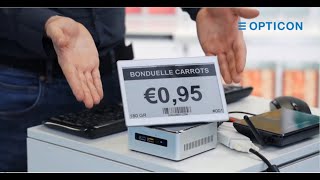
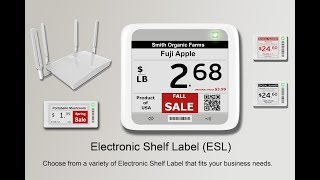
information sink so let's take one of our ESL's the one on the desk here is called B 2 C 0 0 Z 6 F 1 and if we see in the ESL server software there is a label here it's a EE 750 R it's got this firmware version basically all you need to know about ESL's are in these columns and you can right-click the column and add and close anything you want let's have very quick overview the unique ID is not applicable because that's the unique ID of the product that it can't be linked to
the MAC address group which isn't really important for this tutorial so I'm going to turn it off you can use groups for instance to group together certain types of products such as vegetables tobacco and then have the ESL's respond to the group in a certain way which is something that we're going to cover in templates and conditionals next to the MAC address we have a description which of course now says label is not linked the pull interval which is how often the ESL pulls the base station for new information the battery status 1 means the
batteries ok zero means battery is running low you might want to change it the variety the firmware version the image ID each time you upload a new image to the ESL the image ID increments and that way the ESL and the ESL server keep track on the status of each ESL and the picture that it is showing the lqi is a pretty important one too especially when we go into the more advanced topics in a other ESL video and the last poll which is the last time that the ESL pulled for information now that's all
well and good let's get to the actual linking of products since linking is one of the most important features of the ESL server software arguably the most important one there are several ways you can do this the first one is by clicking on an ESL and then you get access to all of the settings for that individual ESL and we can say we want to link or relink it start that action and then we see this screen pop up which has the MAC address the variety of our label and then it asks us for unique
ID you can press on the magnifying glass to access your database so let's say we want to connect this one to tomato paste the unique ID is selected and when we press apply you'll see that the description changes and there's a dark green box around it that dark green box means that the image is queued and it's ready to be placed on the ESL if you click on that line again you'll see that the current image status is queued and it will look like this now the moment that the ESL pulls for data from the
base station the base station you will say I have a new picture for you and then the transfer of data will start wirelessly and once the ESL has received each and every pixel for that image it will then update its image and then tell the base station I've updated my image and when that point has happened the ESL server will change the descriptions background color from this dark green that we have now to a light green but we actually went to a yellow one which means that there was a problem during transfer this can have
several reasons it could happen because there is a bad connection or there was interference and when there is interference some of the packages might get dropped when that happens the ESL server will automatically try to do it again but we can also force it by real inking it and let me use this situation to show you another way instead of choosing an action and pressing start some of you might have already noticed there also is a button just said link to item which is way easier it shows the exact same box we can apply the
existing link and we will tell the ESL server to try again then there is a third way that we can use let's choose a different label and a different product if we just double-click that row item it will also pop up the link ESL box we can say this one is connected to coffee classic roast we apply and this image is cued and then there is a last way or rather a last way within the software because I'll be showing you an awesome little feature in a second if you go to the data tab you
can see that while we were linking the links table has filled up with a couple of links and we have the same information the unique ID of the product the unique MAC address of the ESL and the variety of that ESL we can click Add to add a new one here we also need to choose which ESL we want to link it to so let's choose yet another one and let's choose a different size for instance this 2.9 inch we click unique ID we link it to shampoo we apply it and it pops up in
the link screen now you might notice that this box doesn't automatically close this allows you to quickly and in sequential add new links if you want to link several products to the same type of item you can also select a range link those it will show you a warning that you're going to link to the same item over several ESL's will say yes we are sure we want to do that we link it to pineapples and juice and all three labels are now queued for that new image as you can see these two have now
reported back to the ESL server that they have updated their image well they're right behind me so let me check here we go that one was 738 it should show the full fool Juris classic roast and it did and that is the basic way with which you link ESL's now in a second I'm going to show you yet another way but first let's go and do some more functions because since this one failed there are also other actions that we can perform we can also say resend the image because sometimes the image does arrive and
the ESL reports yeah all the packages were intact but you might have pixel corruption when that happens you can instruct the ESL to resend the image and now when the ESL pulls the base station says yeah I've got a new pictures for you and it will upload it to the device now if you unlink a a ESL you can once again double click and press unlink or you can choose an ESL and perform the unlink action and then the labels are unlinked when you do that by default the ESL will still show the old image
and in the meantime the ESL server has updated the tomato paste image to the ESL that was uncooperative just a second ago we only said recent image and there it went now we've unlinked to other ESL's but by default they will still show the picture they last had because if an ESL is out of range of a base station it doesn't know if there are new instructions or not and you can tell yourself to go to a default image if they're no longer linked and if they can't connect the data to a database or a
base station they just immediately assume I'm unlinked and they go to a default image that's usually unwanted behavior but now we have a product on this label what if we want to turn it back to the original default image once again you click on the ESL you select the action show default image you press start and the next time the ESL pulls the ESL server it will be asked to change its image back to the default that it had before being linked and as you can see there we go it's pretty fast and now the
border is coloring in red and now this ESL is back on a default state and can be used for other products now some of you might be watching and thinking do I have to link each and every single episode one at a time well no and this is a neat little feature that I saved for last in this tutorial about the basics of ESL management you can use the ESL web app during the installation portion of this tutorial I installed the ESL server web application as well as zamp and when we go to our browser
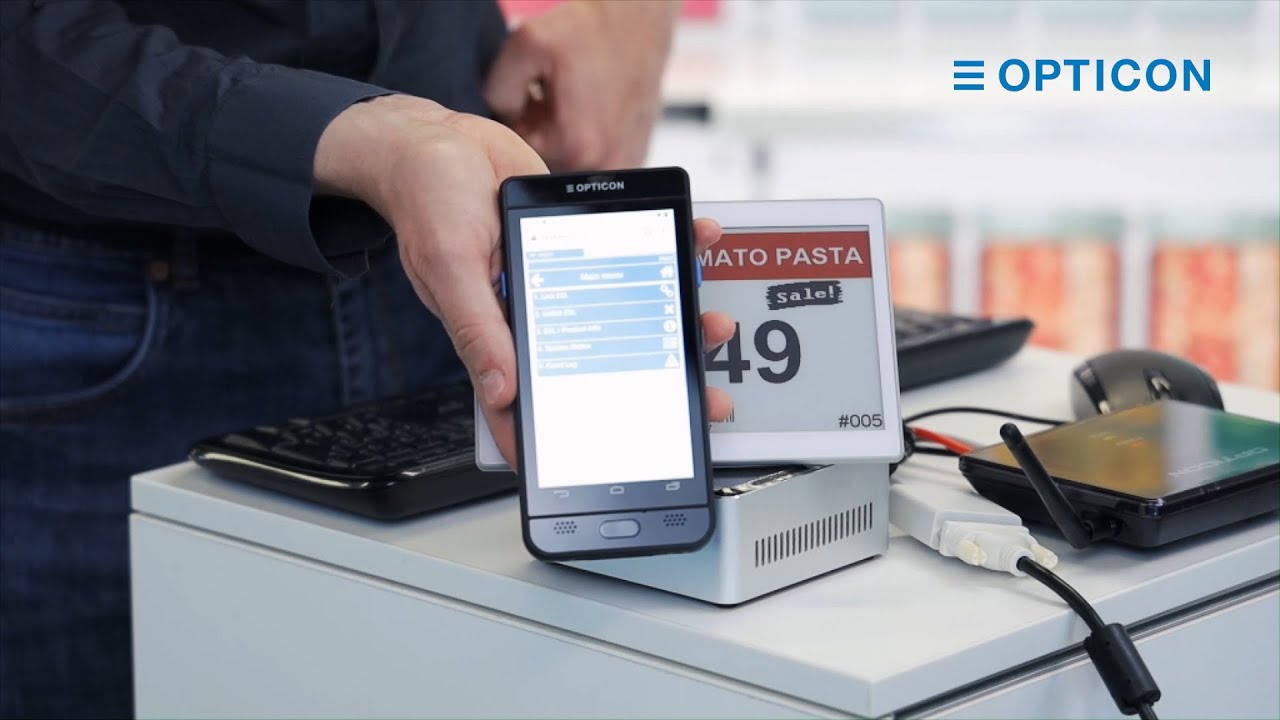
and we go to the local host on port 80 15 it will show the ESL server web application and here we can link ESL's and as you can see it says scan ESL and product because the neat thing about the web application is apache is hosting it to everyone in the network so i can take one of our optical scanners in this case at age 28 I can turn it on I can go to the browser and in the browser I have connected to the IP address of my PC : eighty fifteen and I'm seeing
the exact same scream that we were seeing on the browser on our other device on our ESL server PC so the web app is running on our handheld scanner and that allows me to go to the same link eesl scream that we saw on the browser on the PC and then I can take the product which has a barcode I scan the barcode I scan the ESL and the device tells me that linking was successful and then I can sequentially link each product to an ESL in no time this way you can connect every single
label in the store within a matter of minutes and if we go back to the ESL server software on the PC you can see that there are actually new labels waiting for their image we linked it with the scanner the ESL server got the message to link and suddenly there's a whole bunch of links in this system and the sneakers has already updated its image and that's the basics of linking ESL's showing the default image on ESL's and resending images in the case of a connection failure in the following episode we'll go even deeper into
the more advanced options of the ESL's and the management of these labels now if you have any questions with regards to linking unlinking the default images feel free to contact us there's a support link in the description I would like to thank you for watching stick around for other tutorials we'll see you there bye bye you