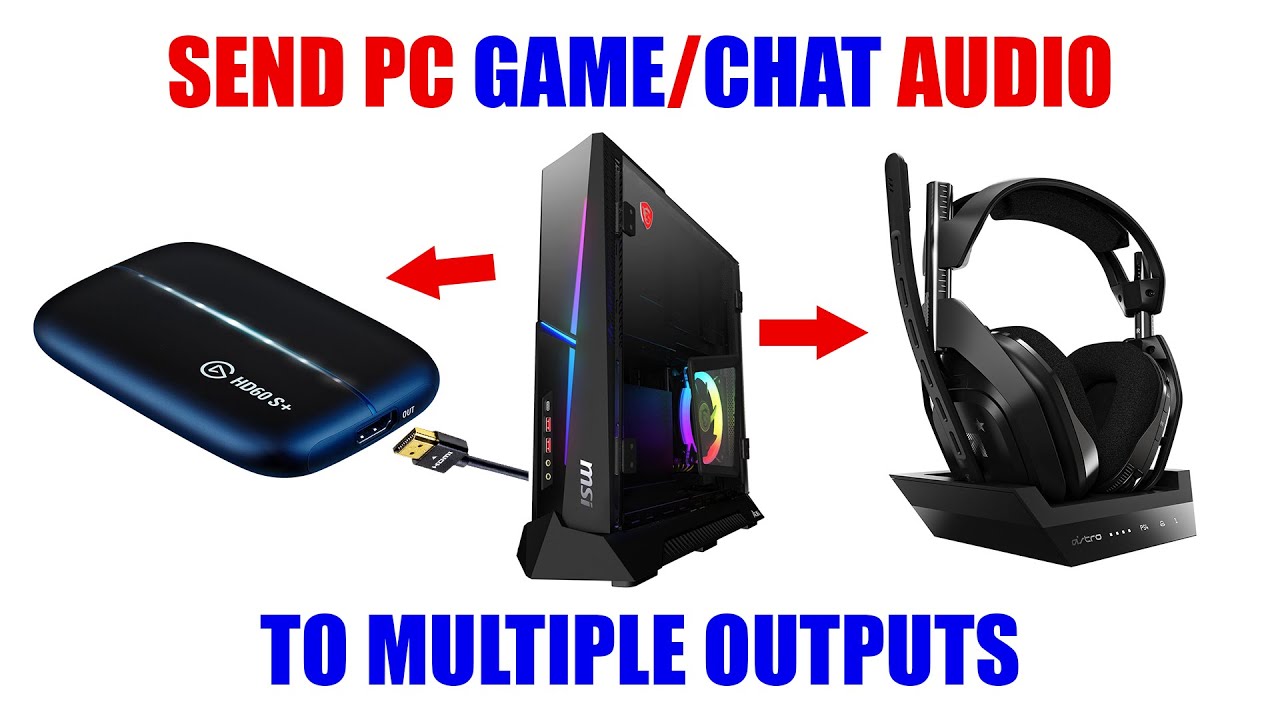
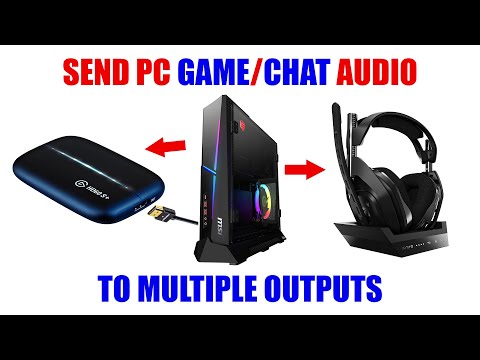
hey what's up everybody it's the hypheny here and today i'm going to show you guys how to send your windows pc audio to two separate outputs your headset and hdmi now natively built in to the windows pc you cannot do that you actually need some software in order to make that happen and there are various ways that you can do it but i'm going to show you the quickest and easiest way without having to get a bunch of accessories without having to pay for any software you're going to be able to do this easily with
the elgato sound capture software now there might be several different reasons why you might want to do that now the most popular reason is for dual pc gaming for me that's what i do and i actually want to be able to hear my game audio and my chat audio through my headset while also still being able to send that audio through hdmi to a capture card to another pc so that i can stream or capture my entire gameplay and chat audio alright so let me hop on the computer and show you how to do that
alright so the first thing you need to do is download the algotto capture software so go ahead and go to their website elgato.com then you're going to click on downloads on the top right corner scroll down make sure that you have windows selected click show all and we're going to scroll down till we find game capture and then we're going to click on this blue download button right here and go ahead and x out this sign up and then once you download it go ahead and install it now once you start to install it it's
going to be called game capture hd now it doesn't matter if you actually intend to use the game capture hd software for actual game capture but you will need to install this in order to be able to install the elgato sound capture software go ahead and install this and when there is a prompt that asks if you want to download the sound capture software make sure you check that you do want to install it and then continue your install process i already have it installed on my computer so i'm not going to show you that
process now since i already have it on but it's that simple now here you can see i have the sound capture installed really quick i want to mention that if you're using a wireless headset such as what i'm using the astro a50 you're going to want to make sure that that's already plugged in and on now before you launch the sound capture you're going to want to go to your sound settings so right click on the little speaker symbol and click on sounds now you're going to want to go to the playback tab and you're
going to want to set your elgato sound capture as your default playback device and your default communications device so once you have it here selected right click and then right now it's not showing you because i already have it set but let me see if i click on another one there's a set as default device set as default communication device you want to do that to the elgato sound capture software so if i scroll up or down you'll see nothing else is set as my default just the elgato sound capture now when we go to
the recording tab you're going to want to make sure that your headset microphone is set as your default device again if it's not already go ahead and right click on your headset and then set as default device then go ahead and press ok now we're going to launch the sound capture software now don't be intimidated i'm going to take you guys step by step we're going to first go to the team chat tab now for your output volumes you can see here that you can actually adjust them don't worry about this right now we'll focus
on this last now under the settings you're going to put what's your microphone for chat go ahead and choose your headset microphone for me it's the astral a50 then you're gonna put where do you wanna hear your friends voices now it's important here that you choose that it's going out to your hdmi now for me my hdmi of this pc is going out into this elgato hd60s plus capture card so here it recognizes it if you're not using this capture card if you're using a different capture card it might show the name of that or
it might just say hdmi so i'm gonna go ahead and select that again this is gonna allow my chat audio to go out with my hdmi into my capture card so my other pc can capture both my game chat and my game audio now under music here's where you can actually have music that's played on this pc going out to one of your sources now for me i never use music on this gaming pc this is my gaming pc my other pc is my streaming pc and if i want music i play it on my
streaming pc but here i do not so i'm actually going to go ahead and select none now we're going to go to pc gaming now you're not going to select your headset here either just like in the game chat you're going to choose your hdmi output which for me is the elgato hd60 s plus like i mentioned earlier so i'm going to select that so now i'm going to have my team chat and my pc gaming audio going out to my hdmi which is going into the hd60s plus now which output is your elgato game
capture device connected to here we're going to go ahead and select that same source the elgato hd60s plus so i want my gameplay audio going out to my capture card and then here it's asking what output is your elgato capture card device connected to like i mentioned earlier the output is going into the hd60s plus so yes these two will be the same source if your source is an hdmi output now we're gonna go to advanced here it's gonna say under settings assign elgato sound capture as your system's default device or playback default communication device
for playback we already did that when we went into the sound settings make sure that these are checked on both what's your audio input this is if you have an audio input into this pc now with dual pc gaming i do not have an input going into this pc i have any microphones and other inputs that i want going into the other computer my streaming pc so this is not going to be used so i'm going to set it to none now underneath that it's going to say where do you want to hear your audio
now again all your audio this is where you can actually choose the multiple locations that it goes to the multiple outputs you see there's a mute symbol and then there is an audio symbol showing you that the output is going through again we do want it to go to the hd60 s plus so our team chat music pc gaming any settings that we did here all this sound is going out to my hd 60s plus which again is my hdmi output so again if you're not using the elgato hd60s plus you're using a different capture
card then that might show up here or it might just say hdmi so if i scroll down you can see the other options that we have now you can actually select multiple outputs so this is going to actually go out to more than just your headset and your hdmi this can go out to your line output your optical output etc but for us we're just worried about hdmi out which is this one and then our headset now with the astro a50 you actually have two different options you can choose astral a50 game or astro a50
voice for the headset now really these both work the same but one of them does sound better so if your headset also has two options just toggle them on or off with your headset on and you'll actually be able to hear the difference between the two and just pick the one that sounds best for yours i believe for the a50 my headset earphone sounds better you don't want them both on it actually degrades the quality when you have both of them on for some reason on the astral a50 so now if i play a sound
if i just mess with this and you hear that little sound you can see the output here moving letting you know that sound is coming through i can hear this on my tv via hdmi which is the throughput from my capture card and i can also hear this on my headset now when it comes to adjusting the volume output for each individual piece whether it's the team chat whether it's the pc gaming or music again each tab can be adjusted manually for the audio output so you can find the right balance for yourself it might
take a few tries to actually get the sweet spot for having the balance that you want but for me i actually have it all like this and it sounds good i adjust my actual game chat audio levels in the game itself so for me i just leave it at 93. i don't have it full blast at 98. 93 seems to be a sweet spot for me and that's it so i'm going to go ahead and close this so now with my headset on i can hear all the sounds at the same time that it's coming
out to my hdmi so i can hear it on my tv and it's going to my capture card so if i want to just listen to my tv i can turn off my headset and just have the volume up on my tv or if i want to mute my tv i can do that and just listen off of my headset now if you have external speakers or an audio interface then you might actually want to have one of those set up on this gaming pc i don't have an audio interface that's why you don't see
it but on occasion i actually do use external speakers that are coming from my speaker output on the back of my computer so when i turn on my bigger speakers i actually go ahead and unmute it here for my speakers so again you have multiple sources it really just comes down to what sources you want but generally i just want audio coming out from my hdmi and my headset now i can go ahead and close that now for whatever reason if you're ever turning on your computer and you don't hear any sound you might have
to open up your sound capture and go into advanced and just make sure that whatever output you want whether it's your speakers or whether it's your hdmi output make sure that it's not muted sometimes this will mute one of your sources or all of your sources for no reason i don't know why it does that sometimes but it's really simple just go ahead and launch the sound capture software and then just make sure that whatever source that you want to hear from is not muted on here so there you guys have it that's your quick
and easy way to send your pc audio to two separate outputs your headset and your hdmi now on this channel i do have a lot of other videos that teach you how to use obs how to do pc gaming how to do game capture all kinds of stuff i do have a link for that playlist in the description thank you guys so much for watching please make sure to drop a like on this video drop a comment below if you have any questions and please make sure to subscribe i have a lot more videos coming
soon i'll catch you guys in the next one peace you
![Elgato Stream Deck for Multi-Cam in OBS Studio [ Setup Tutorial for Live Streaming & Recording ]](https://img.youtube.com/vi/-7dUqgbGpxc/mqdefault.jpg)