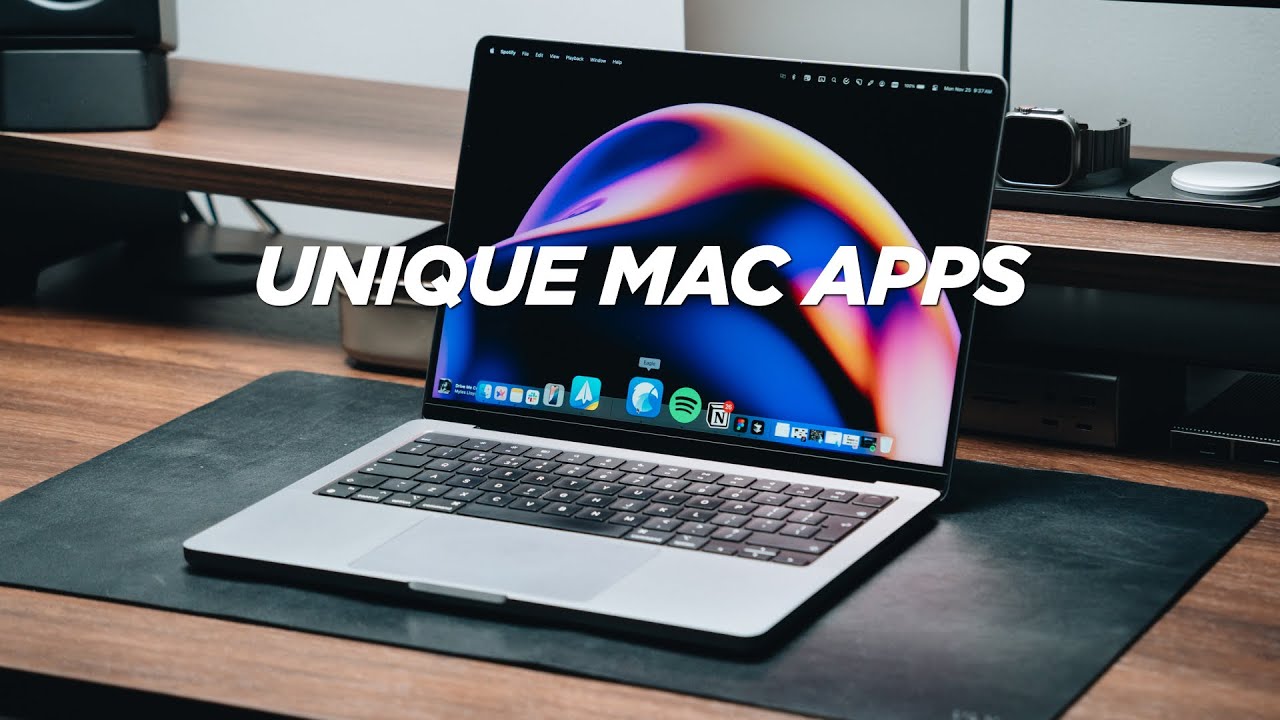
so now that we have a bunch of new Macs and Mac OS seoa is out I wanted to do an updated video on some of my favorite apps that I think you guys should check out I didn't want to cover the most familiar ones that everyone knows of things like phot Pro Chrome Photoshop and other stuff like that I feel like most people know what they are I wanted to cover things that I feel like are a bit more unique you may have heard me mention them on the channel in the past but I really
do think they're worth checking out and some of these apps aren't just necessarily Mac apps they are also web apps which I think are worth sharing so first up is an app called sleeve that I have in the bottom left corner of my screen I get a lot of questions about this and it is just a media player for Spotify you can also hook up to Apple music I think as well and all it does is show me the album art the song title and the artist I can even have the album name if I
want to and it's very simple it just sits in the bottom left on my screen you can put it anywhere you like on the screen really you can customize it there are a bunch of customization options and of course you can pause and play the music you can change the size of it there is just a bunch of customization super simple utility I like to be able to see what is playing on my Spotify at all times because when I'm sitting at my desk I'm usually working alone I always have music playing like all the
time so I just like being able to see what's playing next up we have figma so I'm sure many of you will already be aware of figma but I use figma for pretty much anything and everything graphic related so especially when it comes to my website designs my wallpapers branding emails all these sorts of things things that require any sort of graphical work I usually use figma I don't usually touch Photoshop unless I'm actually doing some photo editing photo adjustments whatever so yeah figma I use it for pretty much anything everything you can see here
I have some stuff for iPhone creative course in here uh I have a framer website that I put together I designed in figma uh YouTube thumbnails as well I actually use it for all of my YouTube thumbnails and yeah you can see it's actually quite satisfying see all these thumbnails isn't it there's a lot of thumbnails in here especially these iPhone ones these iPhone ones look great yeah because obviously YouTube has AB testing for thumbnails I usually like to put together at least three thumbnails and see what YouTube chooses I would definitely recommend learning something
like figma because I feel like the learning curve is is super easy super simple it's really not that hard once you get the basics and you don't need to take any crazy courses or expensive courses or anything like there is a YouTube tutorial out there for pretty much anything and everything related to figma uh I just think it's a very useful program to know how to use next up we have a web app mobin who are also sponsoring this video mobin is basically a place where you can find all of the UI inspiration that you
need when it comes to mobile app design the key thing here that all of the designs that you see here are actual real world designs they aren't just Concepts that you see on dribble on Twitter or whatever these are actual screenshots of apps that are out there in the world that people are actually using the idea is that instead of having to manually download all these apps and see their sort of flows and their screens and whatever else you have access to everything here on mobin so I can see certain apps that I like so
I can go to filters and stuff I can see app categories you can see so many here I can see trending things as well I can see certain popular apps like maybe Airbnb I can see their whole flow pretty much I can see all of the screens that are available in Airbnb there are 8 screens here which is pretty wild but knowing that I have access to all these screens without actually having to download the app and go through it myself just makes life a lot easier and you're not just limited to apps you can
of course see web design inspiration so they have a web section as well where you can see all sorts of inspiration from all sorts of apps so maybe we want to look at Dropbox one of my favorite apps and you can see all the screens that I have 416 screens you can see how they design their platforms because obviously the designers at a company like Dropbox they're incredible designers they're putting a lot of effort and time into these designs so being able to see what they've put together can hopefully inspire you when it comes to
making your own designs the search and filters functionality is super powerful you can of course see trending stuff you can see app categories you can see different types of screens marketing Pages UI elements and flows flows is a big one I think flows for me especially is very very useful because when I'm trying to work out the flow of an app or a website or whatever it it can be quite hard actually it's not that easy so I can see something like colana here I can see their splash screen all the way to sort of
creating an account and getting to the sort of main homepage of the app and of course if there's anything that you see that you really like you can save it you can save it to different collections you can create your own collection I can just create a collection here for landing pages uh like like so create and then when I go to my profile I can see the landing pages collection and I can see it in there so make sure to check out mobin I'll leave a link to it down in the description below next
up we have an app called Eagle so Eagle is essentially a bookmarking app for images and videos so this is what I primarily use when it comes to saving anything on the internet so especially when it comes to sort of Photography UI elements icons and things like that I found it incredibly useful to just save stuff in here but what makes it really powerful is that it saves it in the highest quality version so if you've used Pinterest in the past you know how much of a pain it can be to retain the quality on
Pinterest it doesn't actually save it at the highest quality it compresses it down Eagle doesn't do that it saves it at the highest quality that you need so you can see I have a ton of stuff saved in here I have this picture here of a keyboard and it is very very high quality I can zoom into it and I can see the resolution I can see the size I can see when I imported it I can even see where I got it from so I can see I found this image on Twitter um other
stuff as well something like this like you know saves it in the highest quality possible this is 4,000 by 1300 and you can see how high quality that is it's just a very useful way for me to collect things across the web and even saves video and the best thing about the video functionality is that when you hover over it the video plays automatically you can of course change the density so you can make the images bigger or smaller however you like there's just so so much that you can do with eagle it's super super
powerful and what I also really like about it is that I have it hooked into my Dropbox so when I save any images it saves them to a library uh an eagle Library which is saved in my Dropbox so then when I move from machine to machine I can then load up that library on whatever machine and I can also share the library with any team members so I can share it with someone in the office or whatever they can see all the same images and videos that I've saved and they can also add images
and videos of their own to the library so yes super powerful sort of book marking image bookmarking video bookmarking app um that I use all the time next up is clean shot X so cleanshot X is basically a screenshotting and video recording screen app for your Mac so you can use it to obviously take screenshots take videos I'm actually using it right now to record the screen for this very video and it's super powerful you can record your own voice you can record audio you can have it track clicks and stuff you can even choose
things like resolution aspect ratio which is very very useful for me especially when I'm doing screen recordings for videos the annotations functionality is also Elite being able to quickly sort of take a screenshot and blur out things that I need to or highlight things or whatever it just makes it super easy to annotate any images it doesn't even have to be a screenshot it can just be some other image that have come across online because it's not as heavy as something like Photoshop so you can quickly open it make any annotations that you like and
quickly send it to anyone that you need to next up is raycast and raycast is basically a spotlight replacement so I don't use spotlight at all anymore I have command space now tied to raycast and raycast yeah it's just a more powerful Spotlight I like to see it as it's like a shortcut for anything and everything so of course I can use it to access Final Cut Pro and all these other apps that I have my one password record screen whatever I need to do but you can see here as I scroll down there are
other commands as well so I can do things like keep my Mac with caffeinate I can pick a color I can search emojis search files search folders search for Jess you can even control your lights your Phillips Hue Lights in here so if you have Philips Hue Lights instead of opening up the Philips Hue app on your phone or whatever you can just control them right from here notion is also in here you can do things like confetti so if I do that it shows some confetti yeah it's just like little things like that if
we scroll down I can also see that I can control Spotify and there's all these different commands here empty trash toggle system appearance there's so much you can do with it and of course you can do calculations and stuff as well so maybe I just want to convert like 30 ,000 to Dollars it will do it automatically or maybe I want to do it to durhams ad and it will do that as well so yeah raycast it's free I would highly highly recommend it it's a great Spotlight replacement and you can really make it do
so many different things without having to download other apps to do those things so next up is an app called yink which I love the name yink is brilliant but yeah yoink is basically an app that helps you move files across your Mac so if you ever had this issue where you find a folder you find the files but then you know finding the other folder that you want to put it in it's just going to take too long so what you can do is you can grab whatever files you like and you drag it
and you can just put it onto this sort of sidebar thing here you put it onto there and your files are there waiting for you then you can go to wherever you need to go to so maybe I want to go to like my downloads folder I can then move them to here just a very useful utility when it comes to moving files around on your Mac so next up is a browser replacement called Arc I have fully switched to Arc now I don't even use Safari anymore I use ARC on my Mac I use
Ark on my phone I also use arc on my Windows PC and Arc it's it's hard to explain how useful Arc is until you use it yourself it is based on Chrome which is already awesome because it means you can use all the extensions that Chrome has on Arc and you can see here with Arc instead of having a tab bar at the top you have all your tabs on the left and I feel like it just makes it so much easier to have a bunch of tabs going all at once and being able to
see what the tabs are like websites are designed to be narrow so having your sort of I guess vertical space taken up by more tabs doesn't really make sense when you really think about it I think it makes more sense to have your tabs on the left hand side and that's what Arc can really do of course there are a bunch of other features of Arc that make it very very useful but this is the main feature that I like and of course I can go through all my tabs very very easily very quickly and
it's just awesome like it works so so well what also makes Arc very very powerful is that you can have shortcuts at the top left so you can have bookmarks or whatever to websites that you always go to but there is another key feature which I love about AR and is that you can have spaces so you can swipe on the tab bar to go to a different space and these spaces can act as another browser within Arc so they can have completely different logins completely different browser history completely different cookies whatever else so this
is very useful if you have something like a work setup and a personal setup or maybe you have like a design setup and a development setup and um a home sort of project setup whatever you can have different spaces for all those different things so I have my main space here which I use and then I have a space for my other YouTube channel and then I have a sort of public space here and then I have a PC one as well so I can see all the tabs on my PC because I like to
keep it separate it's just a great way to separate all of your sort of browsing stuff all your internet needs into different spaces I would highly highly recommend check out Arc it's free I think it's free to use it's free to download and even on iOS the browsing experience on iOS is incredible I found that it's just a smooth as Safari but a lot more useful because there's a lot more features and functionality next up is set app and set app is basically Netflix for Mac apps I would highly recommend it because I think it's
like $10 a month and you get access to all these different apps a lot of the apps I've actually mentioned in this video are already available on set app so you don't have to pay for them separately and yeah you save a lot of money going through something like set app and you get access to so many different apps that are just ready to go ready to work in here yeah highly recommend set app it is Netflix for apps next we have an app called n10 so n10 is super simple it's basically like uh Todo
list app or a to-do task app whatever that you can have on your screen at all times it doesn't go away until you finish the task and it's just a super simple utility you can also set a timer to the task so maybe you want to conate on that task for 10 minutes half an hour an hour 2 hours whatever it might be the idea is that you're just focused on the task that you need to do so you don't get distracted um and it even pulses if you need it to super simple utility next
up we have reflex so reflex is basically a way to control what the media buttons do on your keyboard so for older versions of Mac OS like I'm talking like 5 six seven maybe 10 years ago the media controls only used to control the actual media app on your Mac whether that was iTunes Spotify or whatever but somewhere along the line Apple changed that so that the media controls control anything that is currently playing on your Mac whether that's Spotify whether that's a YouTube video whether that's like a Twitter video just whatever I don't like
that functionality that functionality actually is quite annoying to me mainly because I always have Spotify playing in the background so if I have Spotify playing in the background and then I open up a YouTube video and I try to pause Spotify with the media controls it doesn't pause Spotify it pauses the YouTube video that's not what I want I want it to pull Spotify and that's what reflex does I have it locked to Spotify and you can even change what the volume controls do you can have it adjust a system volume or the music app
volume just a much more consistent way of knowing what the media controls are doing next up is an app called Ena Ina Ina something like that um it is basically a media player app it's a quick time replacement that can play pretty much anything and everything and you can even open links in it so you can open sort of streams and stuff in there if you know what I mean like you can sort of open anything uh I just find it a lot easier a lot more useful than something like QuickTime um and of course
you can replace quick time with it it is similar in design to QuickTime just has a lots of features and functionality that you'd want from a player that can do more things next up we have web Studio which is more of a web app rather than a Mac app and web studio if you ever use sort of web flow or framer any of those sort of uh no code website Builders web studio is like those but free like it's literally free uh the only time you pay is when you host a website with them but
you can actually just make a website in web studio and then download it uh it's much cheaper than webflow and framer so you are saving a lot of money there is a bit of learning curve but if you're someone like me who understands and knows how to build most types of websites and you know how code generally works this is super super useful it's a great way to make high quality websites without having to pay crazy crazy fees when it comes to other software now that doesn't mean that web flow and framer don't have their
place especially when it comes to client facing stuff especially when it comes to things that just work out of the box because obviously this takes a bit more work but this is just an awesome piece of software that I just think is worth recommending and the creator of web studio is also an an ex employee of webflow so he already has a lot of experience in the space just a cool website builder and then we have an app called Downey which is the most terrible name for an app ever like I don't know what they
were thinking but it is an awesome app and Downey is an app that can basically download anything and everything on the web when it comes to video so when you want to download a video from something like YouTube Twitter Instagram whatever you can use Downy to download it you can of course download videos from other websites if you know what I mean I really do mean any type of video you can download it so I've copied a YouTube link already I can paste it into Downey and it starts preparing the link it is just my
own iPhone review you can have it do different processing now that it's ready to download you can see I can change the codec I can choose av1 webm MP4 I can choose different resolutions I can also do some postprocessing so if I need to convert it to MP4 or extract the audio only and then I can simply press start to start downloading it and it'll start downloading it it is super super useful an incredible app just to download any type of video from any type of website on the internet so hopefully you guys enjoyed it
I will of course leave link links to everything down in the description below follow me on Instagram and Twitter and subscribe for more [Music]